

Clients
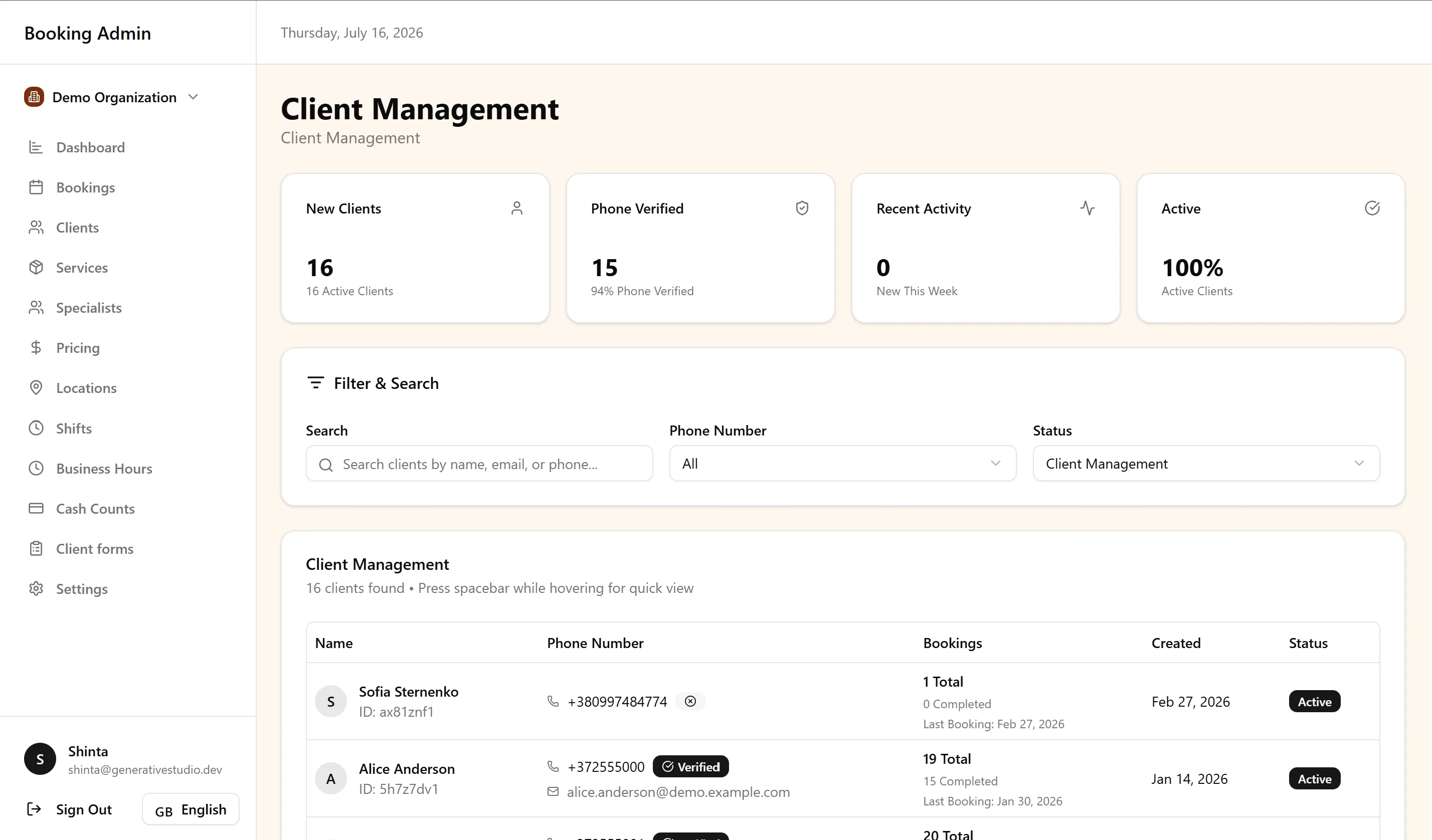
The Clients section is where you manage the people who book with your business. From the admin dashboard, you can view and maintain client records, review their appointment history, and apply controls when needed — so your team always has reliable contact information and context for every booking.
This guide is for business owners and administrators responsible for managing customer relationships alongside day-to-day operations.
What is the Clients section?
Section titled “What is the Clients section?”The Clients section is your central record of everyone who interacts with your business through FullDay. Each client record holds the contact and profile information your team needs to confirm appointments, send notifications, and understand a customer’s relationship with your organization over time.
Clients works alongside Booking Management and the Booking Portal. Bookings create and update client records automatically, and the Clients section gives you a dedicated place to review, edit, and manage those records without searching through individual appointments.
How client records are created automatically
Section titled “How client records are created automatically”In most cases, you do not need to create client records yourself. FullDay builds them as part of the booking process.
When a customer completes a booking through the Booking Portal, their contact details — such as name and phone number — are used to confirm the appointment and create or update their client record at the same time. When your team adds a booking from the dashboard for a walk-in or phone request, entering the client’s details creates or links to a record in the same way.
If a client has booked before, FullDay connects the new appointment to their existing record rather than creating a duplicate entry. This keeps your client list accurate as repeat customers return.
Creating clients manually
Section titled “Creating clients manually”You can also add client records directly in the Clients section when you want someone’s details on file before they book — for example, after an inquiry, a referral, or an in-person conversation where no appointment has been scheduled yet.
Manual client records follow the same structure as those created through bookings. When that person later books — online or through your team — FullDay can link the appointment to the existing record, keeping their history in one place.
Finding clients
Section titled “Finding clients”The Clients list includes everyone in your organization. Use search and filters to narrow it, and choose Load more when the list is long so you can reach every record.
Updating client information
Section titled “Updating client information”Contact details change. Clients move, get new phone numbers, or ask you to correct their name spelling. You can update client information from the Clients section whenever you need to keep a record current.
Keeping client records accurate matters beyond the client profile itself. Updated contact details flow through to future bookings, confirmation emails, appointment reminders, and any communication FullDay sends on your behalf. When you correct information at the client level, your team avoids repeating the same fix on individual appointments.
Client history and appointment history
Section titled “Client history and appointment history”FullDay tracks customer history so you can see how a client has engaged with your business over time. From a client record, you can review their appointment history — past and upcoming bookings linked to that person — without piecing together information from across your schedule.
This history is useful when a client calls with a question, when you want to understand how often someone visits, or when you need context before rescheduling, cancelling, or adding a new booking on their behalf. Client-initiated changes — such as reschedules or cancellations through the Booking Portal — are tracked as part of your operational record, so you can see what was updated and when.
Recording payments
Section titled “Recording payments”Open a booking on the client detail page to record a payment. The Payment Management block shows the booking price, how much has already been paid, and the remaining balance. Enter the amount actually received, choose a payment method, and add the payment.
The amount does not need to match the booking. Record what the client actually paid, whether it is lower, higher, or unrelated to this visit: a deposit, a split across cash, card, or another method, an outstanding debt from an earlier visit, an advance for a future booking, or a rounded amount when exact change is not available. This also applies to free bookings and prepaid package sessions. Recording a payment never changes the booking price. Payment status stays Pending while a balance remains, and becomes Paid once the recorded payments cover the booking price.
If a package was sold with installments, the visit shows the installment amount due. You can collect that amount in one payment or several. You can still complete the visit if a balance remains; the dashboard warns you so the unpaid installment stays visible. Completing the visit does not use the client’s credit for the unpaid installment; the credit balance stays the same until you record a payment. After all installments have been collected, later sessions show as Paid with €0.00 due. To change the price of a prepaid or installment session, edit the booking.
Phone verification
Section titled “Phone verification”FullDay supports phone verification as part of client management. Verifying a client’s phone number helps ensure contact details are accurate and that important actions tied to that number — such as secure booking cancellation through OTP verification — reach the right person.
Accurate phone numbers also keep SMS reminders and other text-based communication reliable. When a client’s number is verified and up to date, your team can trust that automated notifications and security steps work as intended.
Loyalty information
Section titled “Loyalty information”FullDay includes customer history and loyalty management, giving you visibility into a client’s ongoing relationship with your business. Loyalty information gives additional context about a client’s relationship with your business and can help your team provide a more personalized experience.
Use loyalty context alongside appointment history when prioritizing follow-ups, recognizing frequent visitors, or reviewing how clients engage with your services across multiple visits or package bookings.
Blacklist functionality
Section titled “Blacklist functionality”FullDay includes blacklist and client control logic for situations where you need to restrict how a specific person can interact with your business. When a client is blacklisted, the platform applies your organization’s control rules — for example, preventing that person from completing new bookings through the Booking Portal.
Use blacklist controls thoughtfully and in line with your business policies. They give you a clear way to manage repeat no-shows, policy violations, or other cases where allowing self-service booking is not appropriate — while keeping the rest of your client operations unchanged.
How clients and bookings relate
Section titled “How clients and bookings relate”Clients and bookings are closely connected in FullDay. Every booking is linked to a client record, and every client record reflects the appointments associated with that person.
This relationship works in both directions:
- Bookings update clients — New and modified bookings create or refresh client records automatically, so your client list stays current without duplicate data entry.
- Clients support bookings — When your team creates or edits a booking, linking it to the correct client keeps appointment history, contact details, and notifications consistent across your organization.
Whether an appointment originated online or was handled by your staff, the connection between clients and bookings gives you one reliable view of who booked what, and when.
Why keeping client records up to date matters
Section titled “Why keeping client records up to date matters”Accurate client records support everything else in FullDay. When contact details are correct, confirmation emails and appointment reminders reach the right person. When history is complete, your team can answer client questions quickly. When controls like blacklist or phone verification are applied to the right records, your policies are enforced consistently.
Outdated phone numbers, misspelled names, or duplicate records create friction — missed messages, confused clients, and extra work for your team. A few minutes spent maintaining client records saves time across booking management, communication, and day-to-day client interactions.
Best practices for managing clients
Section titled “Best practices for managing clients”A few habits help the Clients section stay useful as your business grows:
- Let bookings build your list — Most client records will come from the Booking Portal and manual bookings. Trust the automatic flow, and add records manually only when you need someone on file before they book.
- Update details when you learn they changed — Correct contact information at the client level so future bookings and notifications stay accurate.
- Review history before making changes — Check a client’s appointment history when they call so you act on the right booking and understand their prior visits.
- Verify phone numbers when it matters — Verify phone numbers for clients who use SMS notifications or self-service features, so verification and notifications work reliably.
- Use blacklist controls deliberately — Apply client controls for clear policy reasons, and keep other client information current so your team has full context.
- Keep clients and bookings aligned — When editing a booking’s contact details, consider whether the client record should be updated too, so both stay consistent.
Next steps
Section titled “Next steps”Continue building on your client workflow with these guides:
-
Booking Management — View, create, and manage bookings from your admin dashboard, including walk-ins and phone requests that create and update client records.
-
Forms & Documents — Collect signed digital forms from clients and manage document templates for your organization.
-
AI Assistants. Look up clients and payment history from Claude or ChatGPT.
For common questions about managing client records, see the FAQ.