

Booking Portal
The Booking Portal is the public-facing page where your clients book appointments on their own — no calls or messages required. As a business owner or administrator, understanding this flow helps you configure your setup with confidence and know exactly what customers experience.
What is the Booking Portal?
Section titled “What is the Booking Portal?”The Booking Portal is your business’s online front door for appointments. When you share your booking link, clients land on a page that introduces your business and walks them through booking.
The portal reflects your organization settings — name, branding, and contact details — so the experience feels like your business, not a generic booking tool.
What can customers do there?
Section titled “What can customers do there?”From the Booking Portal, your clients can:
- Browse available services and check real-time availability
- Complete a booking through a guided step-by-step flow
- Receive a confirmation email, plus SMS or email reminders if you have enabled them
- Reschedule or cancel their appointment on their own
All of this happens without staff involvement. You still see and manage every booking from your admin dashboard.
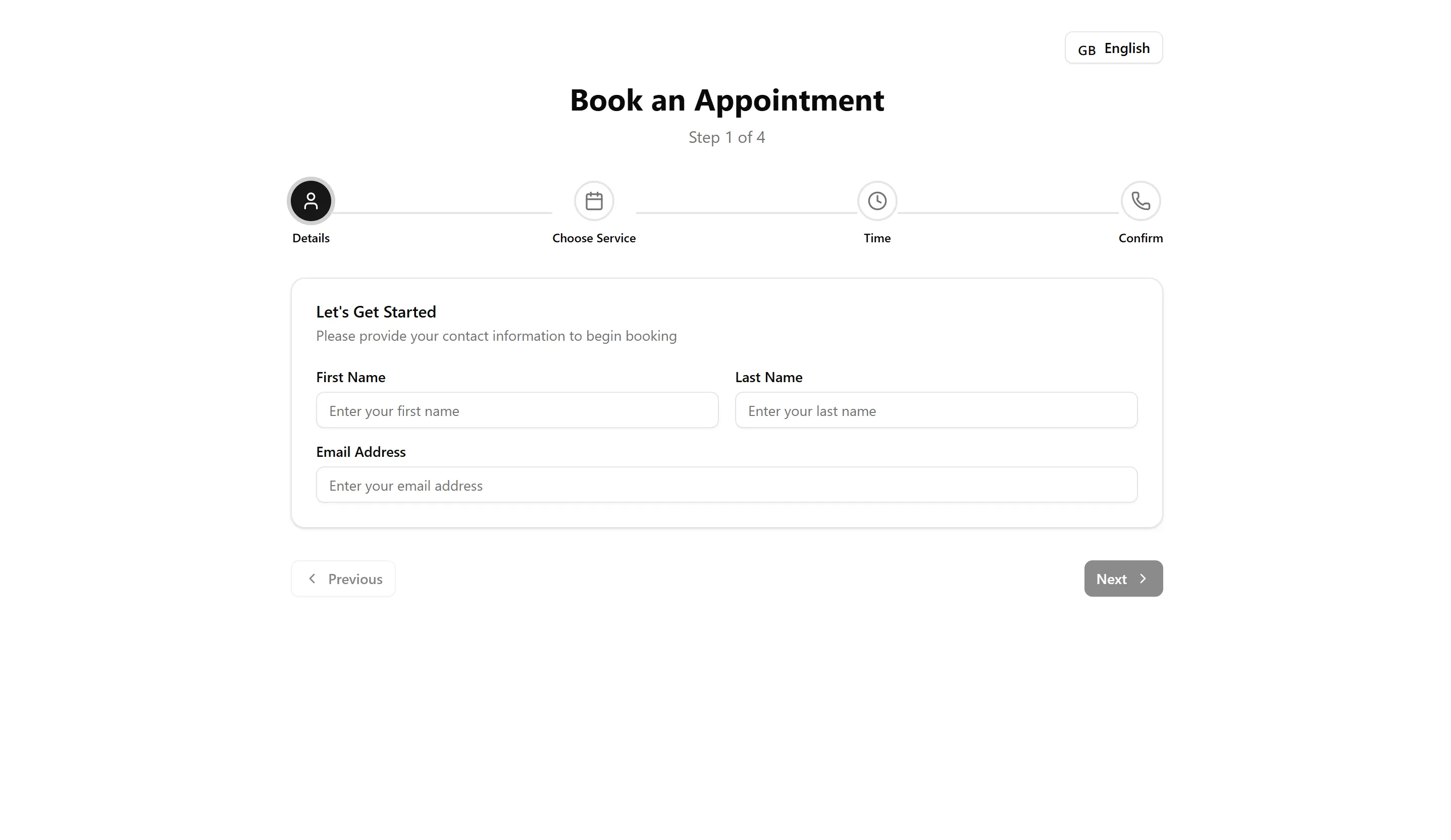
The 4-step booking wizard
Section titled “The 4-step booking wizard”Clients move through four focused steps — one decision at a time.
1. Details
Section titled “1. Details”The client provides their first name, last name, and email address. These details start the booking and are used to build or match their client record.
2. Service
Section titled “2. Service”The client chooses what to book from the services available on your page. If you offer packages or multi-session services, the portal applies the right booking logic here.
3. Time
Section titled “3. Time”The client picks a date and time from slots that are actually available — based on your business hours, specialist schedules, location settings, and scheduling rules. FullDay’s real-time availability engine ensures taken or unavailable slots are never shown.
4. Confirmation
Section titled “4. Confirmation”The client enters a phone number (required), reviews their service, date, time, and contact details, then confirms. A number that cannot be validated for the selected country is still saved with the booking. The booking is recorded and notifications are sent automatically.
Real-time availability
Section titled “Real-time availability”Availability updates in real time as appointments are booked online or added from your dashboard. Clients always see accurate open slots, which reduces double-bookings and back-and-forth about availability.
What drives availability:
- Business hours and location settings
- Specialist schedules and shifts
- Existing bookings across your organization
- Scheduling rules configured in the admin dashboard
You control the setup; the portal shows clients only bookable times.
Packages and multi-session booking
Section titled “Packages and multi-session booking”If you offer packages or services spanning multiple sessions, the Booking Portal handles that logic directly. Clients are guided through the full booking — not just a single appointment — so multi-visit services stay clear for everyone.
When a client already has an active package, the Choose Service step shows the amount they will pay for that visit, and that same amount carries through to confirmation. Remaining prepaid sessions (or sessions after every installment has been collected) show as €0. If an installment is still outstanding, the portal shows that installment amount instead of €0, so the package never looks free while money is still due.
A cancelled package session stays available to rebook as the same session number. If staff changed the package session count before the cancellation, the portal uses that updated count, not the original package size.
If you set a default installment count in Settings, a client buying a new multi-session package can choose Pay in N visits or Pay in full. Pay in N visits is pre-selected. Pay in N visits charges the first installment today and the rest at later visits. Pay in full collects the whole package price on this booking. Clients cannot change the number of installments. If the default is empty, the portal always charges the full package price on a new purchase.
Configure packages and session handling in the admin dashboard; the portal applies it during booking.
Confirmation emails and appointment reminders
Section titled “Confirmation emails and appointment reminders”After a client confirms a booking, FullDay sends a confirmation email with appointment details. You can skip that email for an individual booking created from the admin dashboard.
Appointment reminders are optional and controlled in Settings → General:
- SMS reminder: a text on the next hourly check after the visit is within 48 hours (location timezone).
- Email reminder: an email on the next hourly check after the visit is within 24 hours (location timezone).
If reminders are turned on after a booking is already inside that window, they go out on the next hourly check. Each booking gets at most one of each.
SMS sender name and OTP country prefixes are also configured at the organization level. They do not turn appointment reminders on by themselves.
Client self-service: rescheduling and cancellation
Section titled “Client self-service: rescheduling and cancellation”Clients can reschedule or cancel appointments on their own when plans change, reducing calls and messages to your team. Every client-initiated change is tracked, and you can view and manage these bookings from your admin dashboard.
When a client opens a booking from their confirmation email, they can verify with their email address or phone number. A phone number is not required on that page.
Multi-language support
Section titled “Multi-language support”The Booking Portal supports multiple languages, so clients can book in more than one language where configured. This is helpful when customers prefer a language other than your default.
Marketing tracking
Section titled “Marketing tracking”FullDay supports marketing tracking at the Booking Portal level, including pixel integration, so you can connect your booking page with common marketing and analytics tools.
At a high level, this helps you:
- Track visits and conversions on your booking page
- Measure advertising and promotional campaign effectiveness
- Build a foundation for broader marketing pages and content
Pixel and tracking setup is configured at the organization level — no changes to the booking flow itself are required once connected.
What you see as a business owner
Section titled “What you see as a business owner”Everything clients do in the portal flows into your admin dashboard: new bookings in your list and calendar, client records created or updated, and confirmations sent automatically.
Understanding the customer experience helps you:
- Configure services correctly
- Share your booking page confidently
- Answer common customer questions
Next steps
Section titled “Next steps”-
Booking Management — View, create, and manage bookings from your admin dashboard.
-
Services, Specialists & Scheduling — Set up the services, staff, and schedules that power what clients see when they book.
-
Guided Onboarding — Complete the setup that makes the Booking Portal ready for a first booking.
-
Locations & Organization Settings — Configure locations, branding, and organization details so your booking page reflects your business.
For common questions about the client booking experience, see the FAQ.