

Booking Management
Booking Management is where you and your team oversee every appointment in FullDay. From the admin dashboard, you can see what is coming up, add bookings for walk-ins or phone requests, and keep the schedule accurate as plans change.
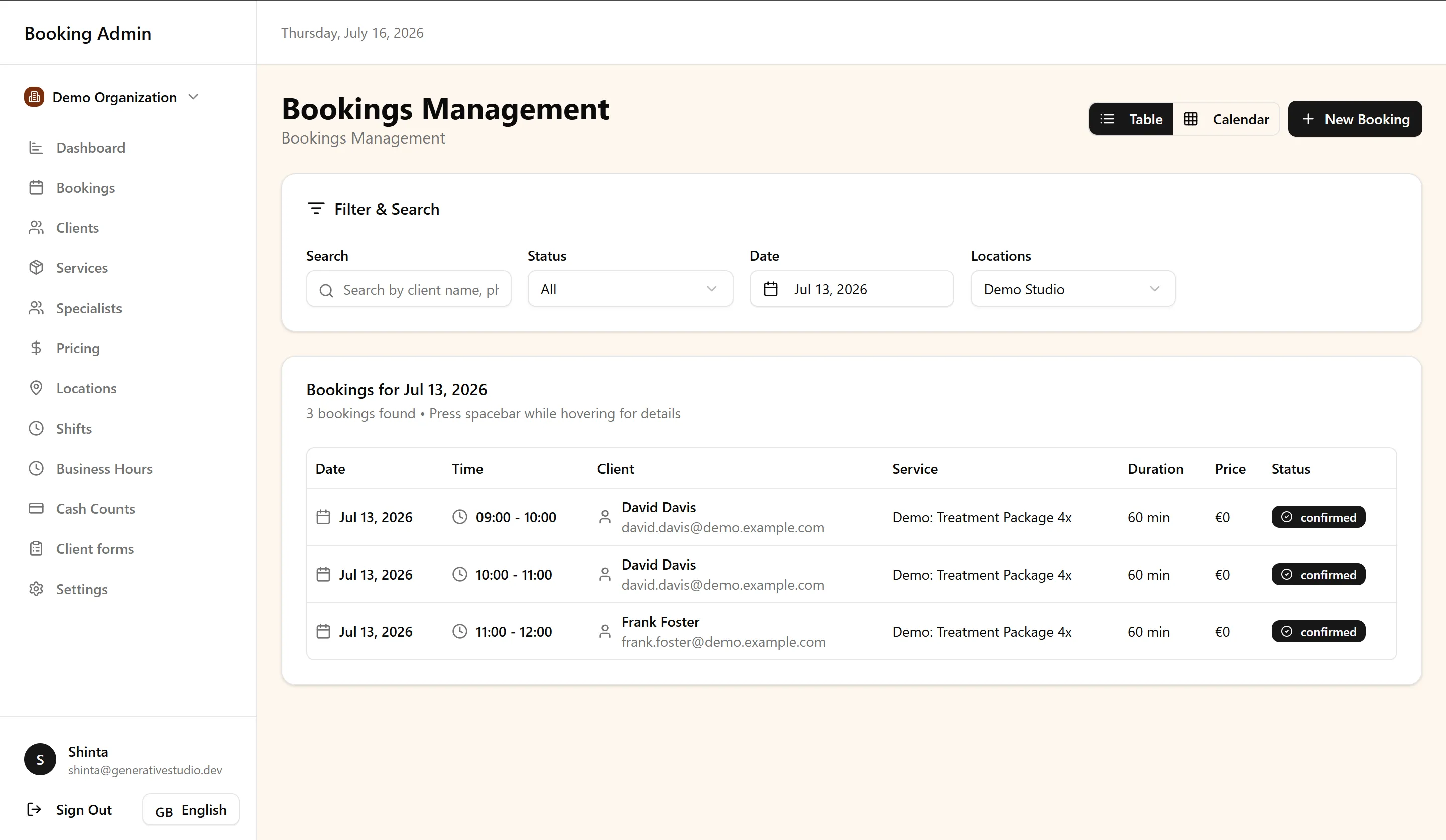
This guide is for business owners and administrators responsible for managing appointments.
What is Booking Management?
Section titled “What is Booking Management?”Booking Management is the operational side of FullDay — the place where your team works with bookings after they exist or need to be created on behalf of a client. It gives you a complete picture of appointments across your organization, whether they were made online or added by your staff.
You can review upcoming and past bookings, open individual appointment details, and take action when clients call, arrive without an online booking, or need a change handled for them.
How it connects to the Booking Portal
Section titled “How it connects to the Booking Portal”The Booking Portal is where clients book on their own. Booking Management is where your team sees and works with those bookings.
When a client completes a booking through the portal, it appears in your dashboard automatically — along with the client record and any confirmations sent by FullDay. When your team creates or updates a booking from the dashboard, that change is reflected in real-time availability, so the portal always shows accurate open times.
The two work as one system: clients self-serve where it makes sense, and your team stays in control of the full schedule from the dashboard.
Booking Views
Section titled “Booking Views”FullDay offers two ways to browse your bookings. Both show the same underlying appointments — they simply organize them differently depending on how you prefer to work.
Table view
Section titled “Table view”The table view lists bookings in a structured, sortable format. Each row represents an appointment, making it easy to scan details such as client, service, date, time, and status across many bookings at once.
Table view is especially useful when you need to:
- Search or filter for a specific booking
- Review bookings across a date range in detail
- Compare appointments side by side
- Work through a list of bookings methodically — for example, confirming the day’s schedule or following up on changes
Calendar view
Section titled “Calendar view”The calendar view displays bookings on a visual timeline organized by date. This makes it straightforward to see how appointments are distributed across days and time slots.
Calendar view is especially useful when you need to:
- See the shape of your day or week at a glance
- Spot open time or busy periods quickly
- Plan around existing appointments when adding or moving bookings
- Understand schedule density across specialists or locations
Choosing the right view
Section titled “Choosing the right view”Neither view replaces the other — they serve different working styles. Use the table view when you need detail and precision across many bookings. Use the calendar view when you need a visual overview of how time is allocated. Choose the view that best matches the way you work.
Managing Bookings
Section titled “Managing Bookings”View booking details
Section titled “View booking details”Open any booking to see its full details — including the client, service, date and time, location, and specialist where applicable. This is your starting point whenever a client calls with a question, arrives for an appointment, or when you need to verify what was booked before making a change.
Bookings created through the Booking Portal and bookings added by your team both appear here, so you always have a single place to check appointment information.
Create bookings manually
Section titled “Create bookings manually”Not every appointment starts online. FullDay lets you create bookings directly from the dashboard — ideal for walk-ins, phone bookings, and any situation where a client is not using the public booking page.
When you add a booking manually, you select the service, time, and client details just as you would expect for an in-person or phone interaction. The booking is recorded in the same system as online appointments, and availability updates immediately so that slot is no longer offered to others.
Edit bookings
Section titled “Edit bookings”When appointment details need to change — such as updating contact information or updating appointment details — you can edit the booking from the dashboard. Changes are saved to the same record, keeping your schedule and client history consistent.
Reschedule bookings
Section titled “Reschedule bookings”If a client needs a different date or time, you can reschedule the booking from the dashboard. FullDay applies the change to availability in real time: the original slot becomes open again, and the new slot is held for that appointment.
Clients can also reschedule their own appointments through the Booking Portal when self-service is enabled. Those changes appear in your dashboard, and client-initiated actions are tracked so you can see what was updated and when.
Cancel bookings
Section titled “Cancel bookings”When an appointment will not go ahead, you can cancel it from the dashboard. Cancelled bookings no longer occupy that time slot, so availability opens up for other clients right away.
Clients may also cancel through the Booking Portal. As with rescheduling, these changes flow into your dashboard automatically, and client-initiated cancellations are recorded for your reference.
Package & Multi-session Bookings
Section titled “Package & Multi-session Bookings”Some services span multiple visits — such as treatment packages or courses that require more than one session. FullDay handles this logic when bookings are created, whether through the Booking Portal or from the dashboard.
After a package or multi-session booking is created, you manage it from Booking Management like any other appointment, with the added context that it is part of a larger series. You can view and work with individual sessions as they come up, reschedule or cancel specific sessions when needed, and keep the overall package progress clear for your team.
Cancelling a package session does not skip that visit number. If sessions 1 and 2 are complete and session 3 is cancelled, the next booking for that package is still session 3. If you override the package session count (for example from 4 to 5), that count stays in effect when the client rebooks, including from the Booking Portal.
If the package was sold with installments, each visit that still has an installment due shows that amount as the booking price. You can mark the visit completed even if payment is still outstanding; staff see a warning so the balance is not missed. Cancelled and no-show visits do not consume an installment.
Package and session handling is configured in the admin dashboard when you set up your services. Booking Management reflects that setup so multi-visit services stay organized without separate tracking outside FullDay.
Real-time Updates
Section titled “Real-time Updates”Availability stays in sync
Section titled “Availability stays in sync”FullDay uses a real-time availability engine across the platform. Whenever a booking is created, rescheduled, or cancelled — online or from the dashboard — availability updates immediately.
That means:
- Slots taken by new bookings are not shown as available on the Booking Portal
- Rescheduled or cancelled appointments release their time slots right away
- Walk-in and phone bookings added from the dashboard affect what clients see online, just as portal bookings affect what your team sees in the dashboard
This shared availability reduces double-bookings and keeps your public booking page aligned with your actual schedule.
Client records update automatically
Section titled “Client records update automatically”When a booking is created or modified, FullDay keeps client records in step. New clients are added automatically when they book — through the portal or when your team enters their details. Existing clients are linked to new and updated bookings without requiring duplicate data entry.
This connection between bookings and client records gives your team a reliable history of who booked what, and when — whether the appointment originated online or was handled by your staff.
Best Practices
Section titled “Best Practices”Keep your schedule organized
Section titled “Keep your schedule organized”A few habits help Booking Management stay reliable as your volume grows:
- Review the day ahead — Use the calendar or table view each morning to confirm upcoming appointments and spot gaps or conflicts early.
- Add walk-ins and phone bookings promptly — Record manual bookings as soon as they are made so availability stays accurate for online clients.
- Reschedule or cancel as soon as you know — Freeing a slot quickly gives other clients a chance to book and keeps your calendar truthful.
- Check booking details before making changes — Open the full appointment record when a client calls so you act on the correct booking.
Work with the Booking Portal, not around it
Section titled “Work with the Booking Portal, not around it”Booking Management and the Booking Portal are designed to work together:
- Let clients self-serve when possible — Rescheduling and cancellation through the portal reduce calls and messages to your team. Monitor those changes from the dashboard rather than handling every request manually.
- Use the dashboard for what clients cannot do alone — Walk-ins, phone bookings, and complex changes are natural reasons to work from Booking Management.
- Keep your underlying setup current — Services, specialists, schedules, and locations drive both what clients see online and what your team manages here. When that foundation is up to date, both sides of the platform stay aligned.
Next steps
Section titled “Next steps”Continue building on your booking workflow with these guides:
-
Clients — Manage client records, contact details, and booking history.
-
Services, Specialists & Scheduling — Configure the services, staff, and schedules that power availability for both the Booking Portal and Booking Management.
-
AI Assistants. Connect Claude or ChatGPT to reschedule, cancel, and look up bookings with your permissions.
For common questions about managing appointments, see the FAQ.